Edit a Figma file with Claude Code in 5 minutes
This tutorial shows how to let Claude Code edit the Figma file you have open on your Mac. You install the FigmaMCP Mac app, check the plugin in Figma, ask for one read and then one edit. The same steps work with Codex. For the full setup reference, see Figma MCP setup for Mac.
What you will do
You will ask Claude Code to rename layers in an open Figma file. First you install FigmaMCP and connect it. Then you ask for a read, check the answer, and ask for an edit. FigmaMCP works through the Figma desktop app and its Plugin API, on your Mac.
Steps
Check what you need
You need a Mac with macOS 14 or later, Intel or Apple Silicon. You need the Figma desktop app, because FigmaMCP does not run in the browser. You need Claude Code or Codex.
You do not edit config files in a terminal, and you do not create a Figma access token.
Download the app and open it
Download FigmaMCP for Mac, open FigmaMCP.dmg and drag the app to Applications. The download is about 155 MB.
Download for Mac Version 0.1.21 macOS 14+ · Intel & Apple Silicon · ~155 MB
Follow the checklist and click Add to Figma
Open the app. Its checklist checks for Figma, Claude Code and Codex, then registers the plugin and connects your agent. Click Add to Figma. Figma restarts once, and only if it was running and the plugin was missing.
You can also allow Accessibility, which is optional. If you allow it, FigmaMCP can open the plugin for your AI. If you do not, you open the plugin yourself in step 5.
Restart Claude Code
If Claude Code is already running, quit it and start it again, so it loads the new tools.
The FigmaMCP tools have names that start with
mcp__figmamcp__, for examplemcp__figmamcp__page_info.Open the plugin and check the switch
Open a file in the Figma desktop app, then choose Plugins, Development, FigmaMCP. The panel shows the file it is connected to. If the AI can edit this file switch is on, your agent can edit the file. If it is off, the file is read-only.
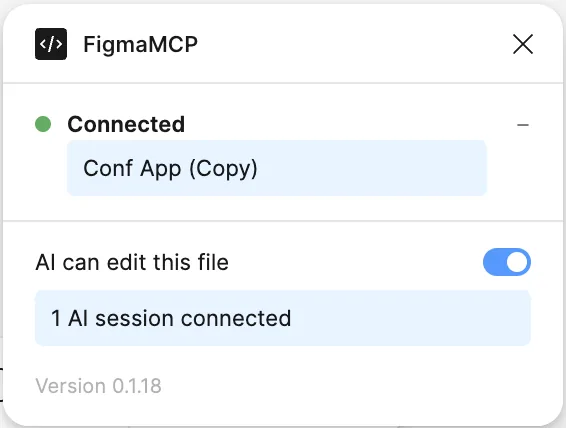
The FigmaMCP panel in Figma: the connected file, the AI can edit this file switch and the number of connected AI sessions. Ask for a read first
Start with a request that only reads the file, for example: “List the text layers in the selected frame, with their font and size.”
Check the answer against what you see in Figma. A read cannot change the file, so this is a safe first test of the connection.
Ask for an edit
If the answer is right, ask for an edit, for example: “Rename every layer called Frame 12 to match its heading.” The layer names change in Figma while you watch.
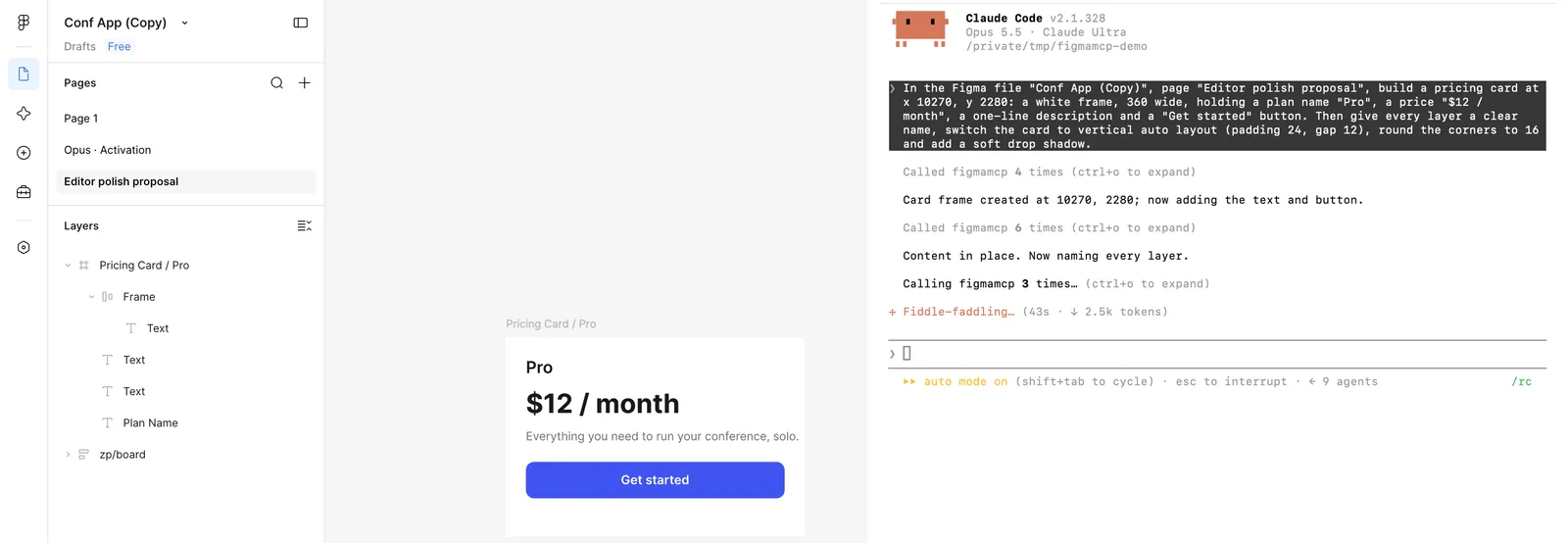
Claude Code renames layers in the open Figma file through FigmaMCP.
Keep your file safe
- Duplicate the file before a large bulk change.
- Ask for one frame at a time.
- Check the result as you would check a colleague’s work, and use Figma version history.
- Turn the AI can edit this file switch off to make the file read-only again, at any time.
FigmaMCP also checks each edit before it runs. Each edit must name its target layer exactly, and a bulk edit with one invalid item changes nothing. For the full list of checks, see Is it safe?
If something does not work
- The file must be open in the Figma desktop app, not in the browser.
- If you did not allow Accessibility, open the plugin once in each file (Plugins, Development, FigmaMCP) and leave it open while your agent edits.
- If the agent can read but not edit, the AI can edit this file switch is off.
- For other errors, see Troubleshooting.
Notes
- macOS only for now.
- Features that belong to Figma itself, such as Dev Mode, are not included.
- FigmaMCP is not affiliated with or endorsed by Figma, Inc.
- The source code is not public. Releases and issues are on the FigmaMCP releases page.
FigmaMCP does not call Figma’s MCP server, so it has no call quota. Figma’s official MCP server can also write to the canvas, and its write tools are exempt from rate limits. Pick the one that fits your work: official Figma MCP vs FigmaMCP.
Next: run a design QA pass on a Figma file, Edit Figma with Claude Code, use cases, or all tools.
Last updated:
