Run a design QA pass on a Figma file with an AI agent
This tutorial shows how to let Claude Code or Codex check one frame in your Figma file and fix what it finds. The agent scores the frame against a written rubric, fixes the lowest categories, looks at the frame again and repeats until every category scores 9 or more. It works on the live file through FigmaMCP and the Figma desktop app on your Mac.
What you will do
You will copy one skill, open the FigmaMCP plugin in your file and ask for design QA on one frame. The agent then runs a loop: look, score, fix, look again. You get a table with the scores for each round and the fix the agent applied in it.
The six categories
| Category | What loses points |
|---|---|
| Alignment | Children of a stack with different left edges; labels that are not centered in their button |
| Spacing | Gaps that are not a multiple of 4; more than two gap sizes in one stack; uneven padding |
| Type scale | Font sizes off the scale 12, 14, 16, 20, 24, 32, or the scale your file uses |
| Contrast | Text below 4.5:1 against its background, or below 3:1 for large text |
| Naming | Default layer names such as Frame 12, Text or Rectangle 3 |
| Auto layout | Stacks, inputs and buttons laid out by hand instead of with auto layout |
Each category starts at 10 and loses points for each problem. The full penalties are in the skill’s rubric.
Steps
Set up FigmaMCP
Install the FigmaMCP Mac app and connect Claude Code or Codex. If you have not done this yet, follow the tutorial Edit a Figma file with Claude Code in 5 minutes first.
Setup is the same for every task. See Edit a Figma file with Claude Code in 5 minutes or Figma MCP setup for Mac.
Copy the figma-design-qa skill
Copy the
skills/figma-design-qafolder from the FigmaMCP releases page into~/.claude/skills/for Claude Code, or~/.codex/skills/for Codex. Then start a new agent session.A skill is a short instruction file. This one tells the agent how to score a frame and which tools fix which problem. The FigmaMCP app installs only the base
figmamcpskill, so you copy this one yourself. Get it from skills/figma-design-qa; the rubric is in references/rubric.md.Open the plugin and check the switch
Open the file in the Figma desktop app, then choose Plugins, Development, FigmaMCP. Make sure the AI can edit this file switch is on. Work on a duplicate of the file or frame if you want to keep the original.
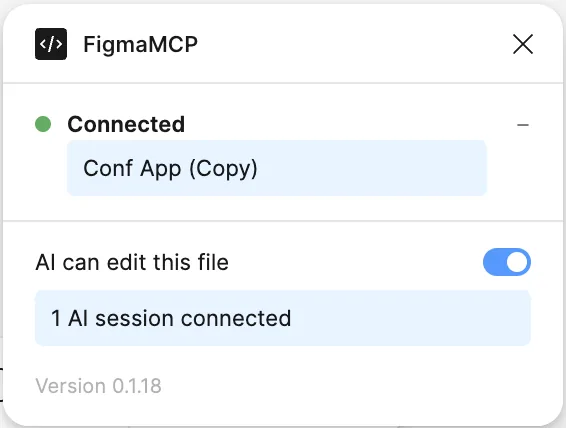
The FigmaMCP panel in Figma. With the switch off, the agent can only read. Ask for design QA on one frame
Name one frame and a target, for example: “Run design QA on the frame Sign-up card until every category scores 9 or more.” The agent says which frame it will edit, by name and ID, before it writes.
You can also set the round limit (the default is 5), or give the type scale your file already uses.
Let the agent score the frame
In round 0 the agent reads the frame with
node_infoand exports it withnode_export_visualas a picture. It scores six categories from 0 to 10: alignment, spacing, type scale, contrast, naming and auto layout. The overall score is the mean of the six.The scores come from numbers, such as left edges, gaps, font sizes and contrast ratios, not from the picture alone. The agent writes down each problem with the number that proves it.
Let it fix and score again
In each round the agent fixes the one or two lowest categories, exports the frame again and scores all six again. It stops when every category is 9 or more, at the round limit, or when a round raises no score.
Fixing one or two categories per round keeps each change small enough to review in Figma.
Review the result
The agent reports one table row per round, with the fix it applied and the six scores, then anything it could not fix and why. Check the frame in Figma, and use version history to undo a round you do not want.
Example result: 1.7 to 10.0 in three rounds
This is the worked example in the skill’s rubric, from a live run on 2026-11-20. The frame was a sign-up card built messy on purpose: a title, a subtitle, two input frames, a button frame and a log-in line.
| Round | Fix applied | Align | Spacing | Type | Contrast | Names | Auto layout | Overall |
|---|---|---|---|---|---|---|---|---|
| 0 | (none) | 0 | 0 | 4 | 2 | 0 | 4 | 1.7 |
| 1 | Card: vertical auto layout, padding 32, gap 16, hug height; fields and button fill width | 8 | 10 | 4 | 2 | 0 | 7 | 5.2 |
| 2 | Sizes 27/15/13/14/17/11 → 24/16/14/14/16/12; three greys to #64748B/#6B7380 | 9 | 10 | 10 | 10 | 0 | 7 | 7.7 |
| 3 | Fields and button: horizontal auto layout, padding 16, centered; button height 46 → 48; 10 layers renamed | 10 | 10 | 10 | 10 | 10 | 10 | 10.0 |
A frame from a real project will start from a different score, and some problems may be outside what the rubric or the tools can fix. The agent then stops and tells you what is left.
What the agent will not do
- It writes only inside the frame you named. It does not change other frames, and it does not change styles or variables unless you ask.
- If the frame is outside the editable scope, or the switch is off and the file is read-only, it stops and tells you. It does not move the work to another frame or file.
- Each edit must name its target layer exactly, and a bulk edit with one invalid item changes nothing. See Is it safe?
Notes
- macOS only for now, and the Figma desktop app is required.
- Read-only audits with no fixes are covered in Audit a Figma file.
- FigmaMCP is not affiliated with or endorsed by Figma, Inc.
Next: auto layout tools, export a frame as an image, use cases, or all tools.
Last updated:
